Products
The Product tool allows you to insert product information from a selected source into an email template. To add the tool to the template move the "Products" icon to the desired position.

A form will appear.
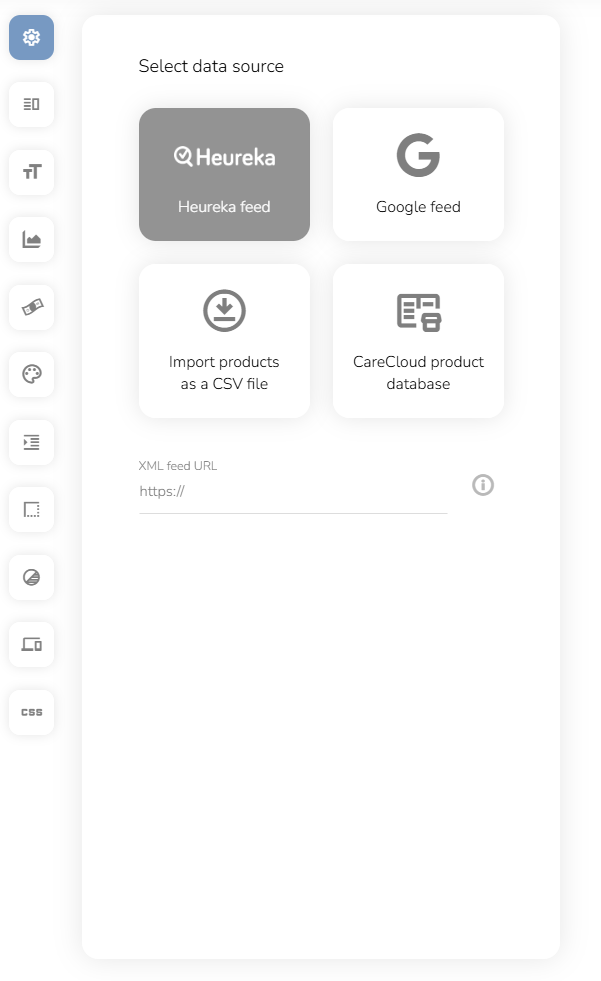
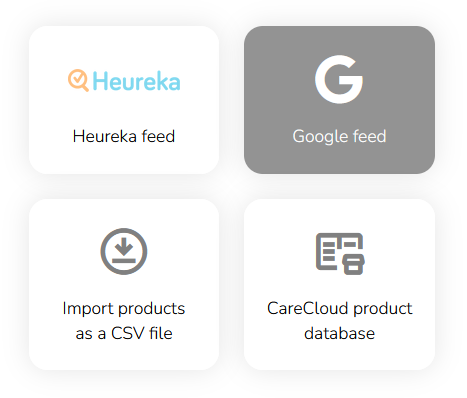
You can select the source from which the product data will be taken and inserted into the template. The available data sources are Heureka feed, Google feed, a .csv file or the CareCloud product database. Just select the appropriate tile and the import options will open.
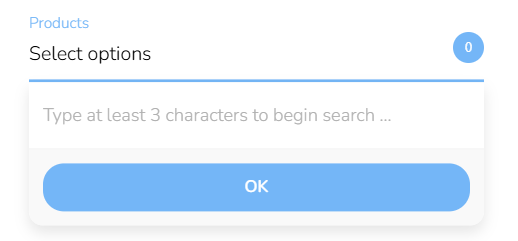
To add products to the template, search and select in the Products search bar the ones you want to promote. Searching the articles is avalaible by Product name or by Product ID.
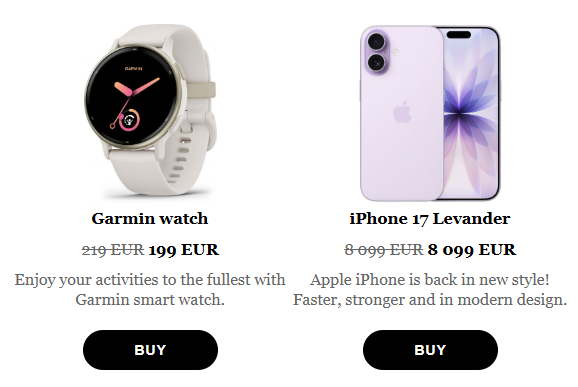
The selected products will appear in the template, inheriting the template’s default style settings.
In the Parametrs search bar select the product information you want to display.
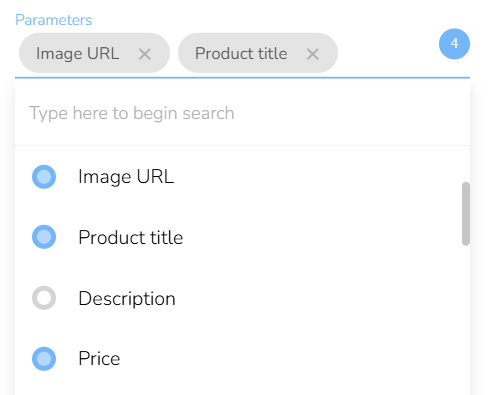
The selected parameters will apear.
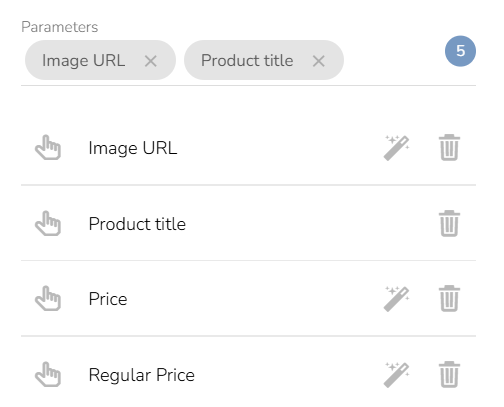
The magic wand icon next to every parameter defines whether the parameter is dynamic or fixed. When a parametr is marked as dynamic, it means that its values are filled in dynamically at the moment of sending, ensuring that the values are always up to date. Click the icon and watch the magic happen. If you do so, the magic wand icon turns blue.
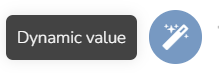
Note: This feature is only avaiable for products added through the CareCloud Product database.
Change the order of the Products or of the Product Parameters by dragging the "Move" icon.
Delete any product or parameter by clicking the "Delete" icon
Changing the Parameters
You can easily modify the values of selected parameters by clicking the "Change" icon next to each product.
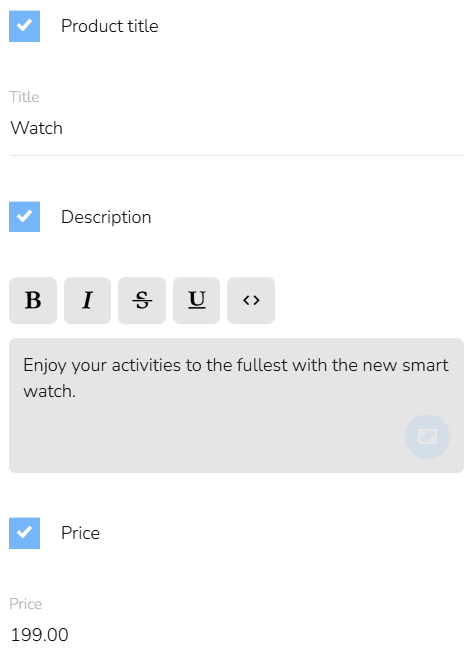
A side window will appear. You can choose to hide any parameter by unchecking the checkbox. You can also manually rewrite the values.
Layout
To learn how to set the "Layout," click here.
Style of Values
To learn how to set the "Style of Vlaues," click here.
Style of Images
To learn how to set the "Style of Images", click here.
Price
To learn how to set the "Price", click here.
Responsiveness
To learn how to set the "Responsiveness", click here.
Style of the item
To learn how to set the "Style the Item", click here.