Saving Blocks and Saved Blocks
Saved blocks allow you to reuse the same block across multiple templates. A saved block retains its settings even when the content changes, saving you time and reducing repetitive tasks when formatting templates.
There are two types of saved blocks based on their functionalities - global blocks and local blocks.
Global blocks are synchronized across all templates — when you edit and save a global block, the changes are automatically applied to every template where the block is used as global.
Local blocks, on the other hand, are independent. Changes made to a saved block inserted as local apply only to the current template and are not reflected in any other template.
How to Save a Block
To save a block, click on the "Save" icon in the block menu.
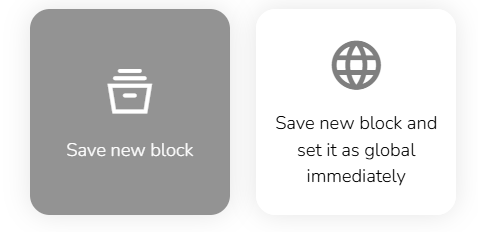
Choose whether the block should be directly set as global in the current template.
Enter the name of the block.

Finally, click the "Confirm" button to save the block.
Overview of Saved Blocks
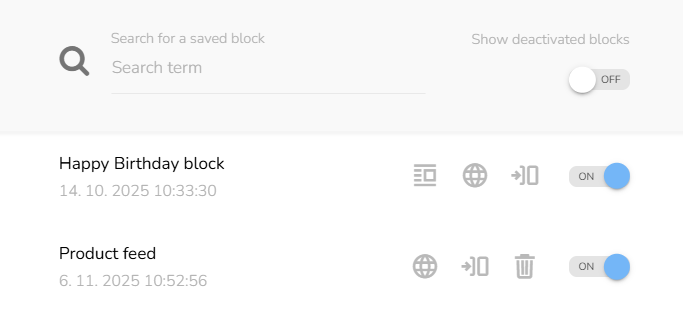
Display the overview of saved blocks by clicking the "Saved blocks" icon in the template menu.

The overview will appear.
Insert a Saved Block into a template
Choose a saved block from the list or type its title in the searchbar.
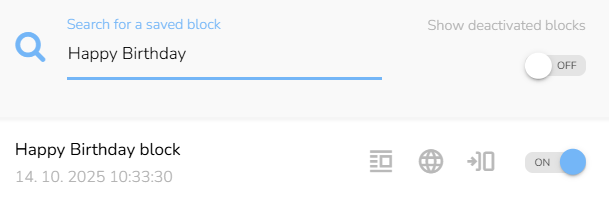
You can insert a saved block into a template either as global or as local.
To add a saved block to a template, click and drag the “globe” icon to insert it as a global, or drag the “insert” icon to insert it as local. Then drop it in the desired position within the template.


Global and local blocks are visually differentiated in the template by color: local blocks have a blue frame, while global blocks have a purple frame.
If a global block is edited, the frame turns red to indicate unsaved changes. Click the “Save block” icon and choose one of the following actions:
- Save the executed changes
- Save a new block as a copy of the current one
- Cancel the connection to a global block
- Revert all changes
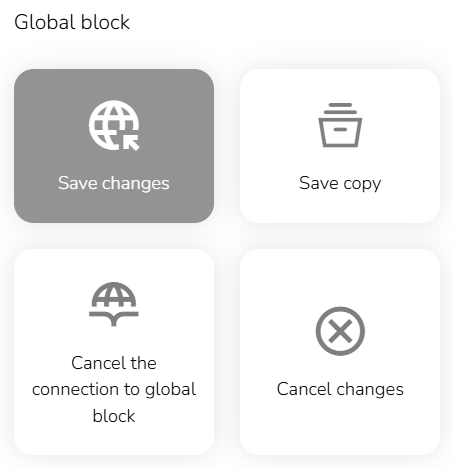
Click the "Confirm" button to confirm your choice.
Note: The template cannot be saved until all changes in global blocks are saved.
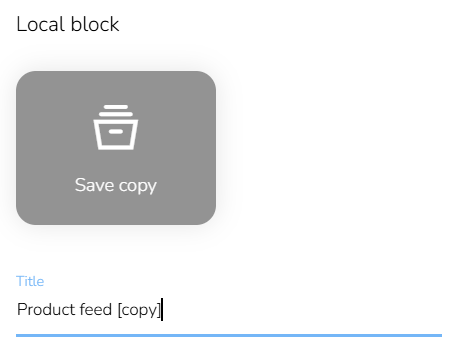
If a local block is edited, you can leave the changes unsaved, keeping them only in the current template, or save a new block containing those modifications.
Other available actions in the Overview
Edit the title of a saved block by clicking the title and typing in the edited name.
If the block is already inserted in any template as global, a list of these templates is available. Click the "List of template in which the global block is included" icon to open the overview.

You can click the template name to open it in edit mode in a new window. If the template has already been used in a campaign, it can no longer be edited.
Delete the block by clicking the “Delete” icon.
If a saved block is used as global in any template it can no longer be deleted. In that case, you can deactivate the block and therefore hide it from the overview.
In the upper right corner of the overview, you can choose to display deactivated saved blocks by changing the ON/OFF switch.