Countdown
Add a countdown by moving the "Countdown" instrument to the desired position in the email body.

A form will appear.
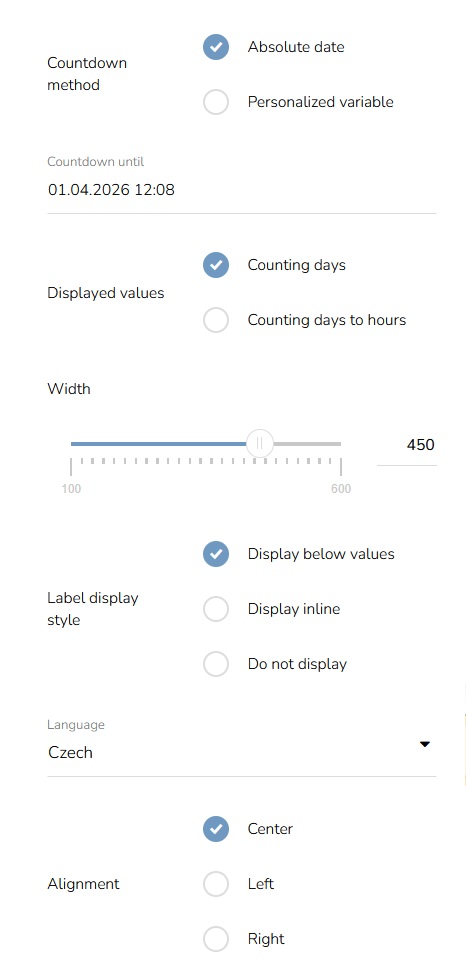
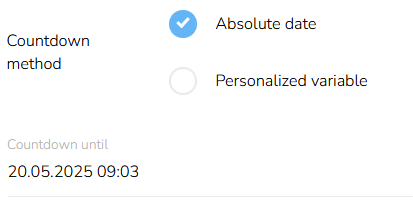
Choose the Countdown method - Absolute date (where you set the actual date) or Personalized variables (date of validity of the last generated voucher of the customer).
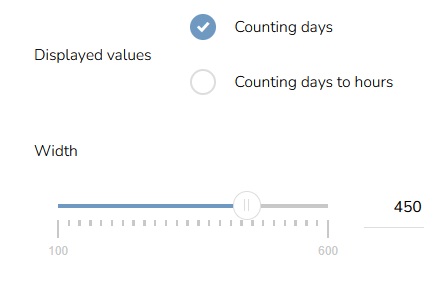
Choose the Display value, whether you want to count days or hours. Also set the width.
Set the Label display style. If you choose the Display below values or Display inline you will also be able to choose the language. Set the alignment.
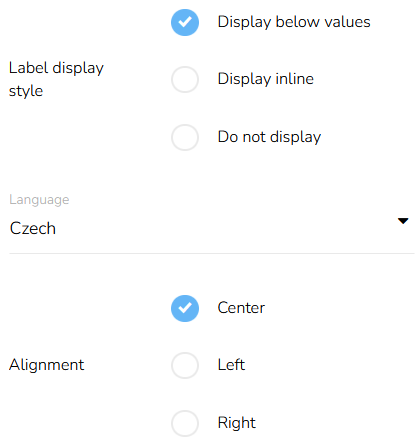
Text Style
Click on the "Text style" icon.

Choose the style of the values and labels from the dropdown. Pick the color of the numbers and labels.
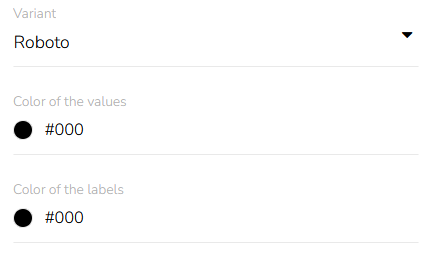
Background Color
Click on the "Background" icon.

Set the background color of the values.
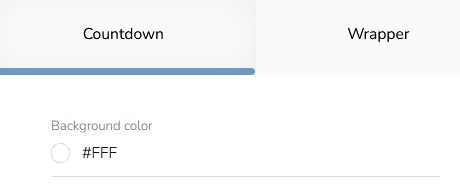
Choose the color.
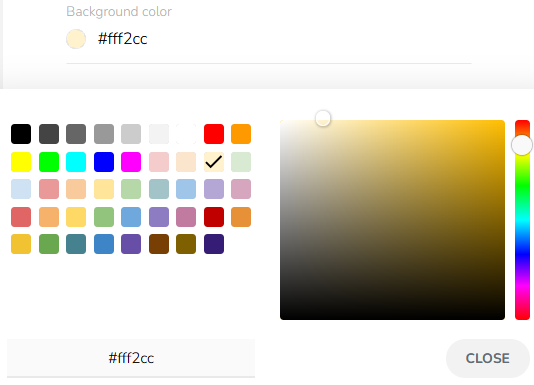
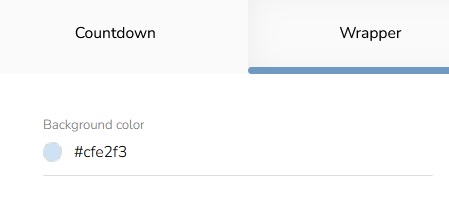
Then switch to "Wrapper" and choose the background color in the same way.
Padding
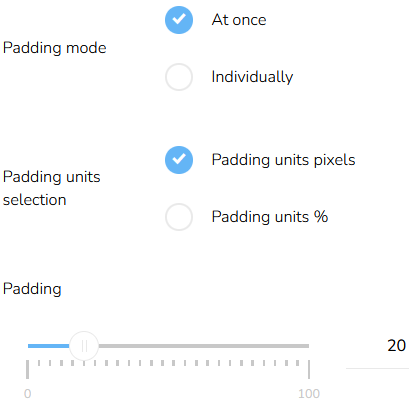
To set the padding of the block, click on the "Padding" icon.

Select the padding mode — whether it is the same for all sides or different for each side. Select the units and then set the padding for all sides at once or individually for each side.
Border Style
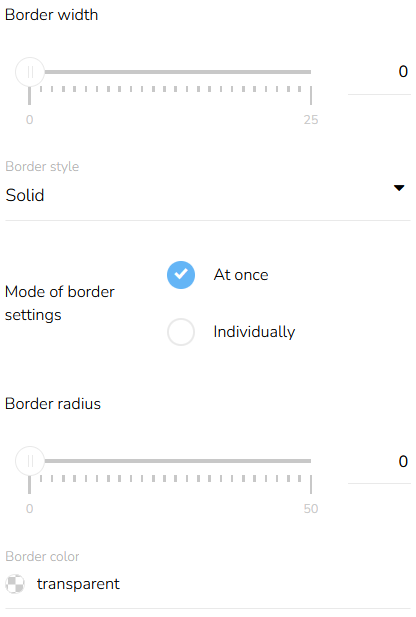
Click on the "Border radius" icon.

Set the border width, border style, and mode of border setting — individually or at once and set the border-radius — same for all corners or individually for each corner. Set the border color.
Shadow Setting
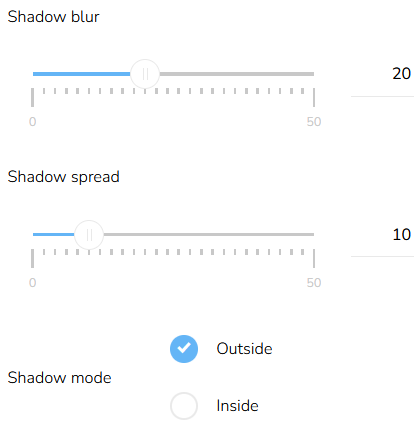
Click on the "Box shadow " icon.

Set the shadow blur, shadow spread, and shadow mode.
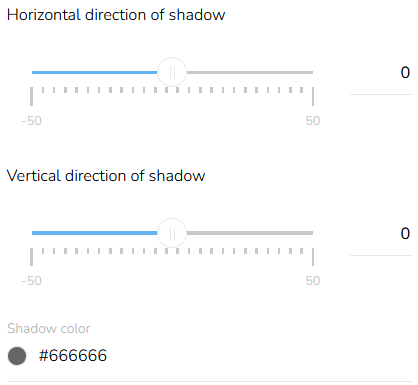
Set the horizontal and vertical direction of the shadow and choose a shadow color.