Create a Workflow For Sending Emails With Voucher Codes to Customers
In the main menu, click on the "Marketing Automation" app.
Create a new workflow using the plus icon.

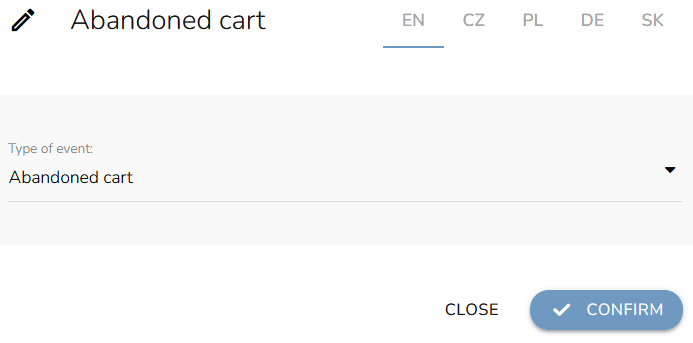
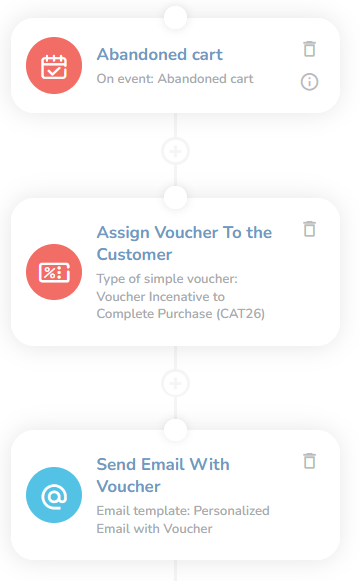
As a trigger, choose "On event" and select "Abandoned cart".
Add a new node using the plus icon and choose the “Assign Simple voucher” icon.
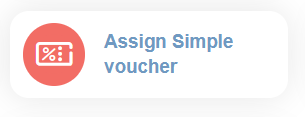
Click on the node and choose the reward you created in the first step.
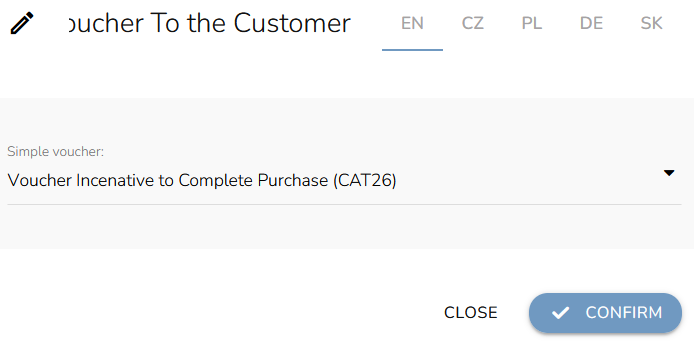
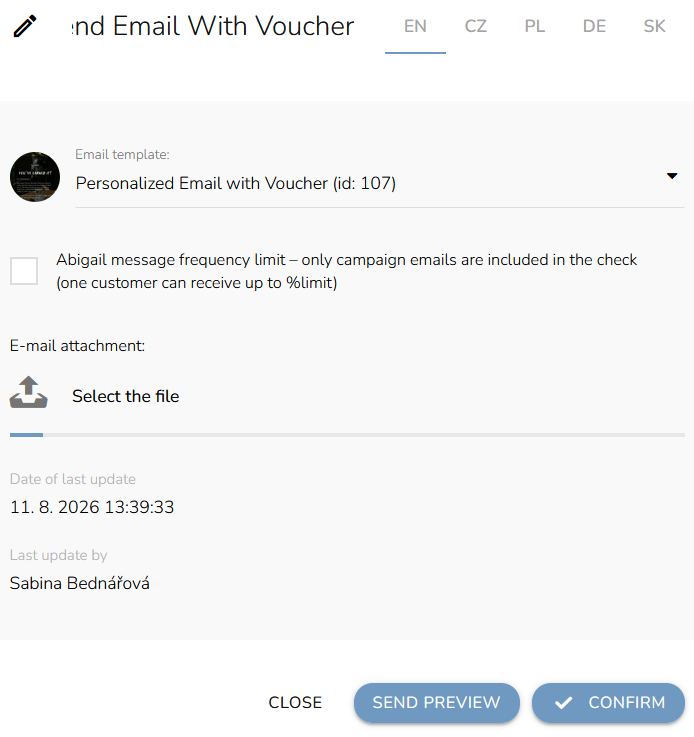
Once again, click on the plus icon and choose the “Send Email” icon. Select the email template you created in the second step from the dropdown.
When the workflow is done, click on the "Save workflow" icon.
To activate the workflow, in the Overview of workflows table, find the "Processing status" column. For the newly created workflow, click Inactive and instead select "Active" from the dropdown.

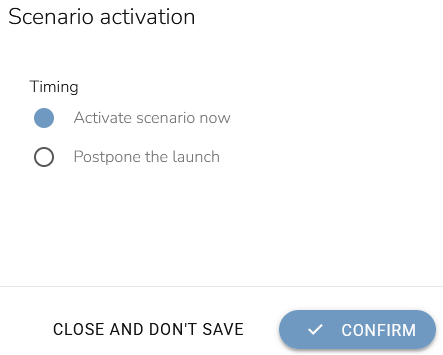
Choose whether you want to activate the workflow immediately or click on the Postpone the launch and select a date and time for the workflow to start.