Create the Company Account
This guide will describe how to create an account in the application “Customer 360 View”, but it's also possible to create customers via our REST API endpoint.
Open "Customer 360 View" application in the main menu.
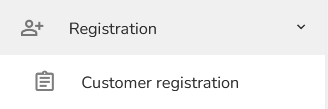
Click on the Registration and then choose Customer Registration in the left menu.
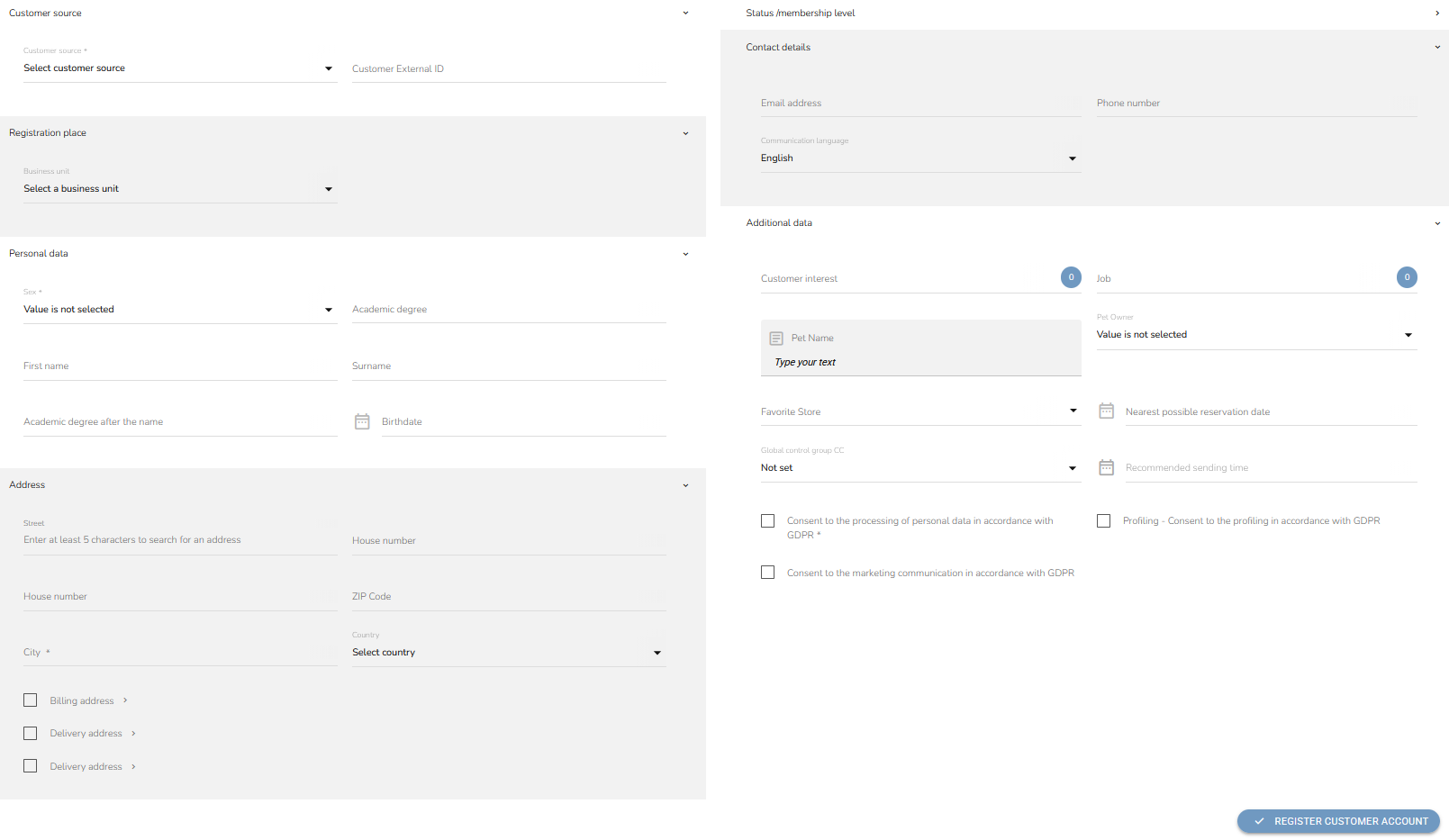
A Registration form will appear.
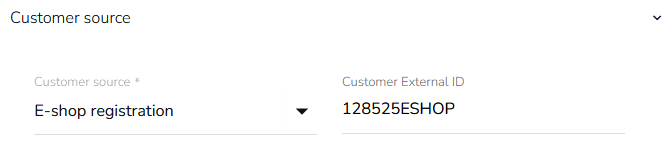
Select the contact source and, if possible, insert Customer External ID — customer identification from the external system.
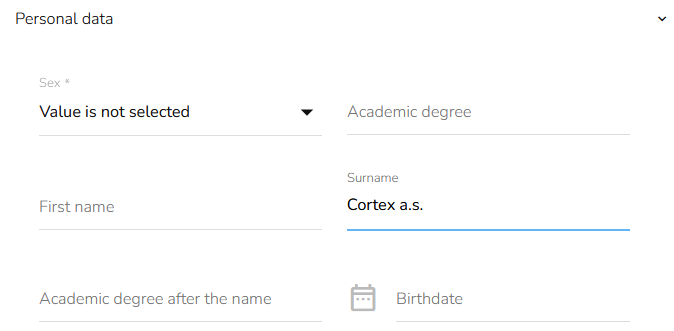
Insert name of the company into the surname field.
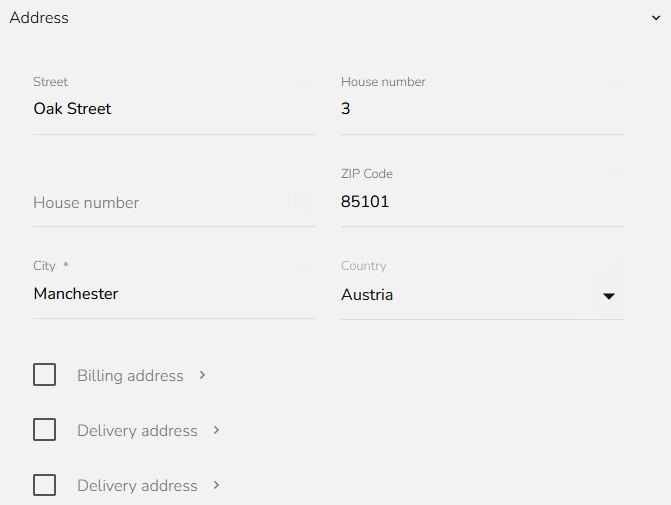
In the address section, fill in the street, street number, house number, ZIP code, and city, and choose the country. In case of a different delivery and billing address, fill in the data for them as well.
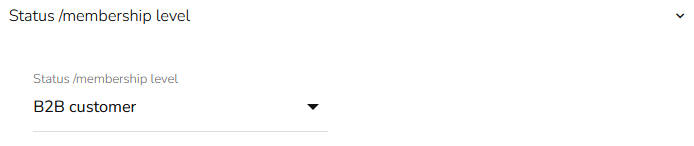
Set the membership level for the business account. We have created the membership level in the previous step.
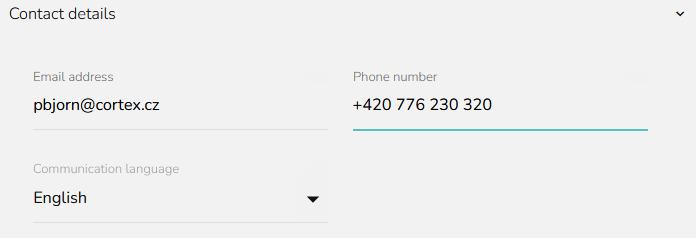
In the contact details, insert an email address and phone number in a valid format. Select a communication language.
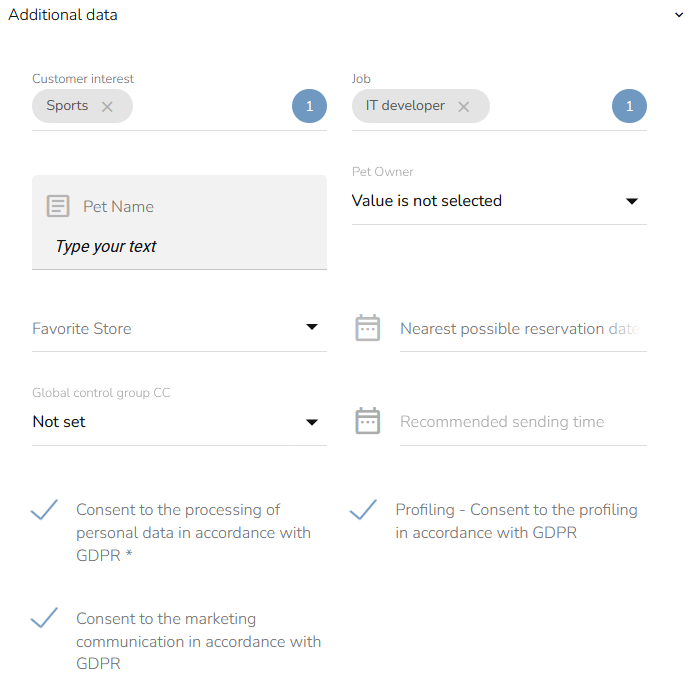
In the additional data section, you can set the custom properties. They need to be created first in the Loyalty & Administration app.
Set the desired properties such as the Company registration number. Grant the necessary consents — Consent to the processing of personal data in accordance with GDPR, Consent to the marketing communication in accordance with GDPR, and Profiling — Consent to the profiling in accordance with GDPR.
When all the necessary details are provided, click on the "Register customer account" button.
