Click & Collect 01: Customer Notification (Email + SMS)
Workflow Detail: Transparency is key to a great Click & Collect experience. Our automated workflow keeps your customers informed at every touchpoint: from the moment an order is placed to the final pickup. Whether it’s a status update or a warehouse restock, we’ve got it covered.
Workflow Preview:
.png "N%C3%A1vrh%20bez%20n%C3%A1zvu%20%2860%29")
See the details of this workflow in the CareCloud Platform Demo here or ask for your access details.
Step by Step Description
Below is a description of each node in the workflow with an explanation if needed.
Trigger
The workflow is triggered with the external Change of reservation status event. This means that every time a reservation status changes this workflow begins.
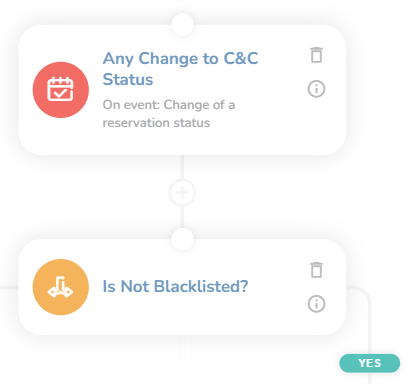
Next, we will check whether it´s the Click & Collect order. Add a "Condition" node and choose Add customer property condition. Set the rest as you see on the screen.
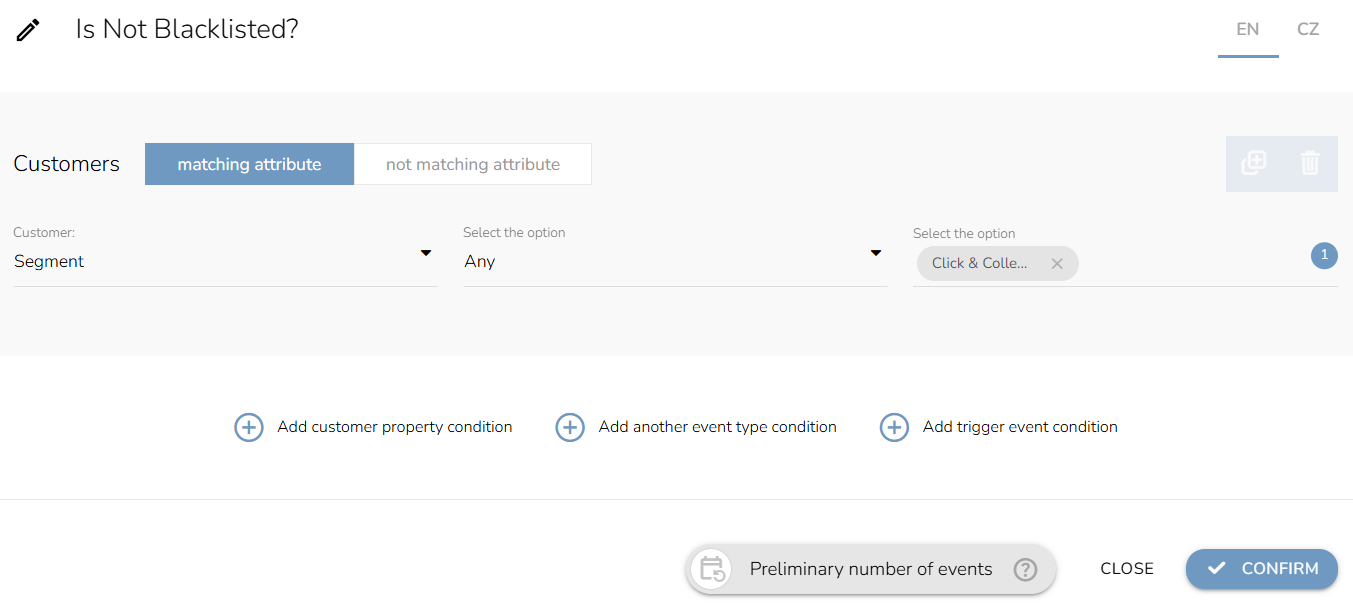
If the reservation is not the Click & Collect the workflow ends here. Otherwise, we will move to the next node.
Click & Collect Status
The workflow is now dividing into different branches based on the C&C status: Submitted status, Goods order, Ready, Canceled, Abandoned and Delivered. First, we need to set the condition for each status. Choose "Add trigger event condition" and set the attributes such as: Reservation status and Any. For the status, select the one you need to use.
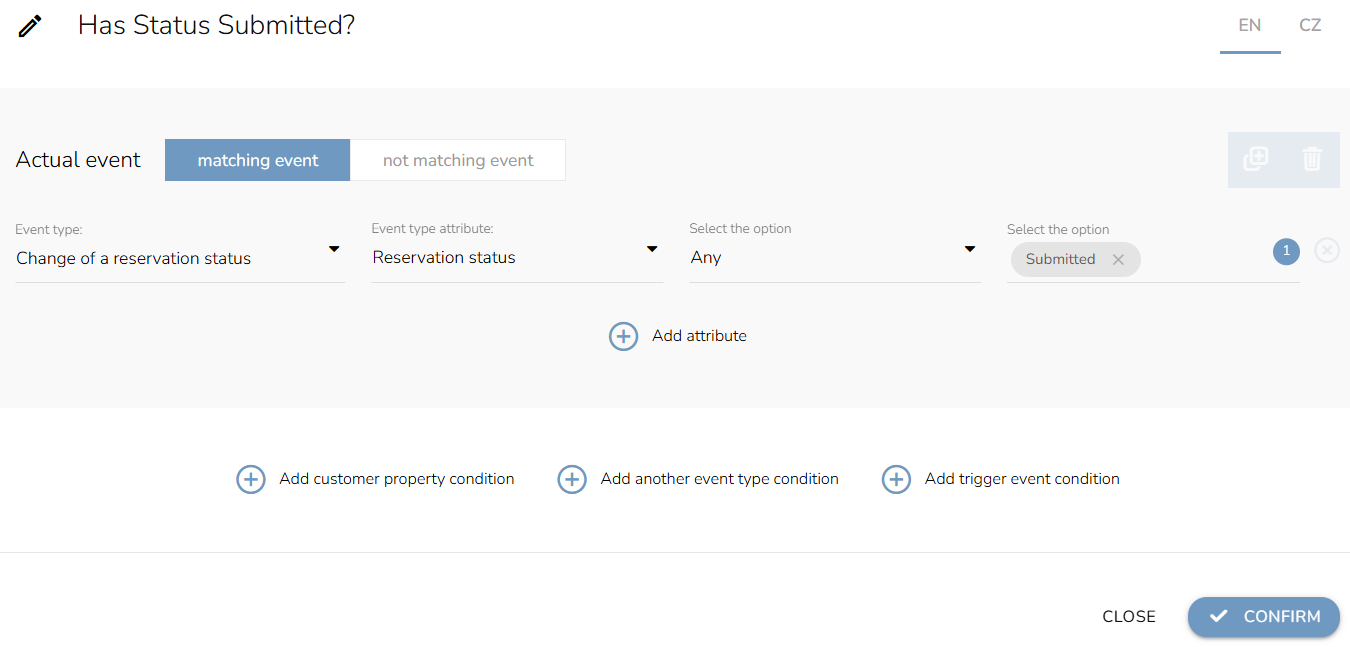
Now we will look at each branch.
1. Submitted Status
To assure the customer that you have received their order, send them a confirmation email and SMS. Set up the "Send Email" node and select an email design from the dropdown menu. Then set up the "Send SMS" node as well.
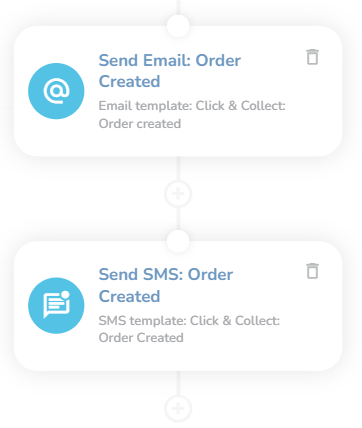
Note: Emails and SMS must be designed before in the "Campaign & Audiences App".
2. Goods Ordered
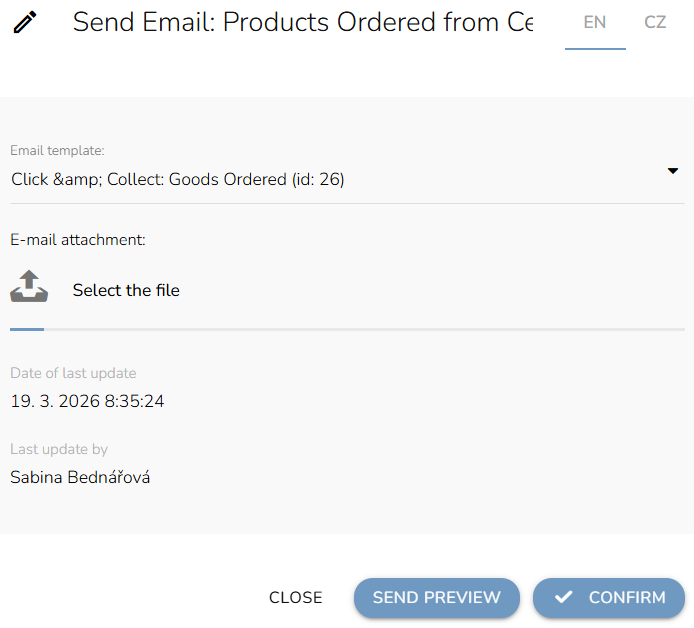
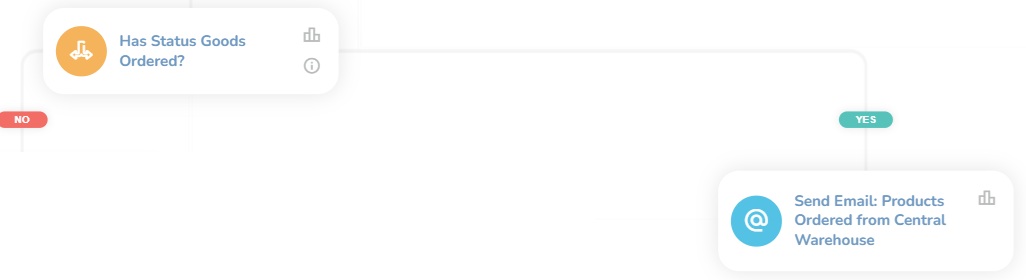
In case you don´t have the product in stock and the order will be delayed, we will send the customer a heads up email. Once again, set the "Send Email" node and choose the template from the dropdown.
3. Order Is Ready
Send the email and SMS to inform customers that their order is ready for pick up. Let the customer have some time. There is a time delay between the moment the customer receives the email and the moment he picks up his order. Choose the "Waiting node" and set a relative time there; in this case, it´s two days. Also, set the "Waiting for time range" node.
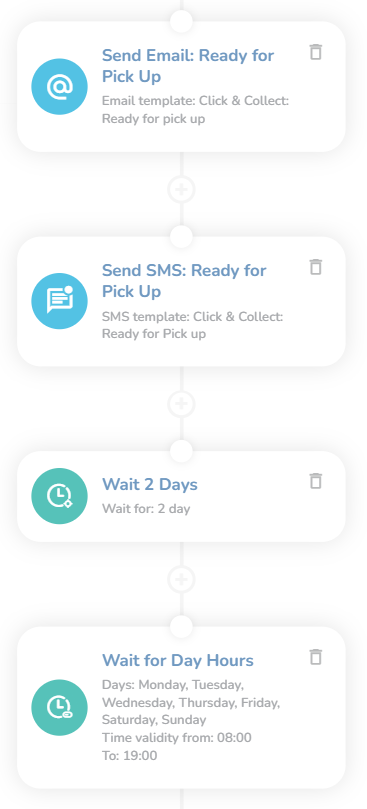
Set the condition that checks whether the order is picked up. If yes, the wokrklfow ends here.
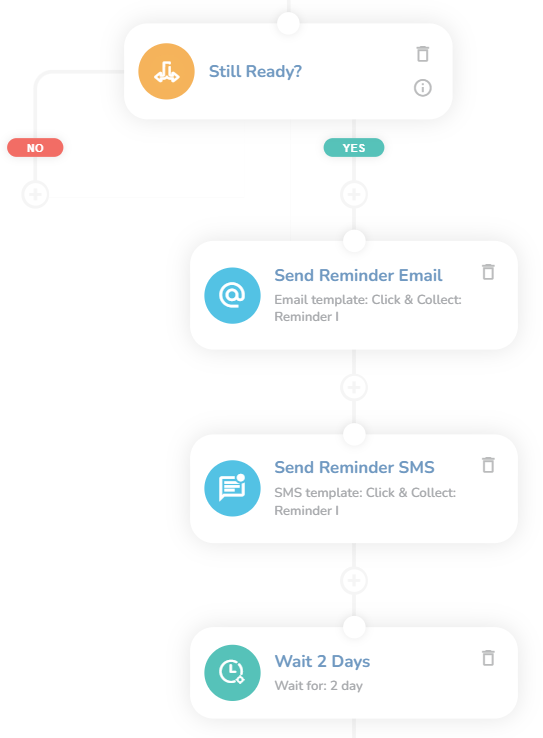
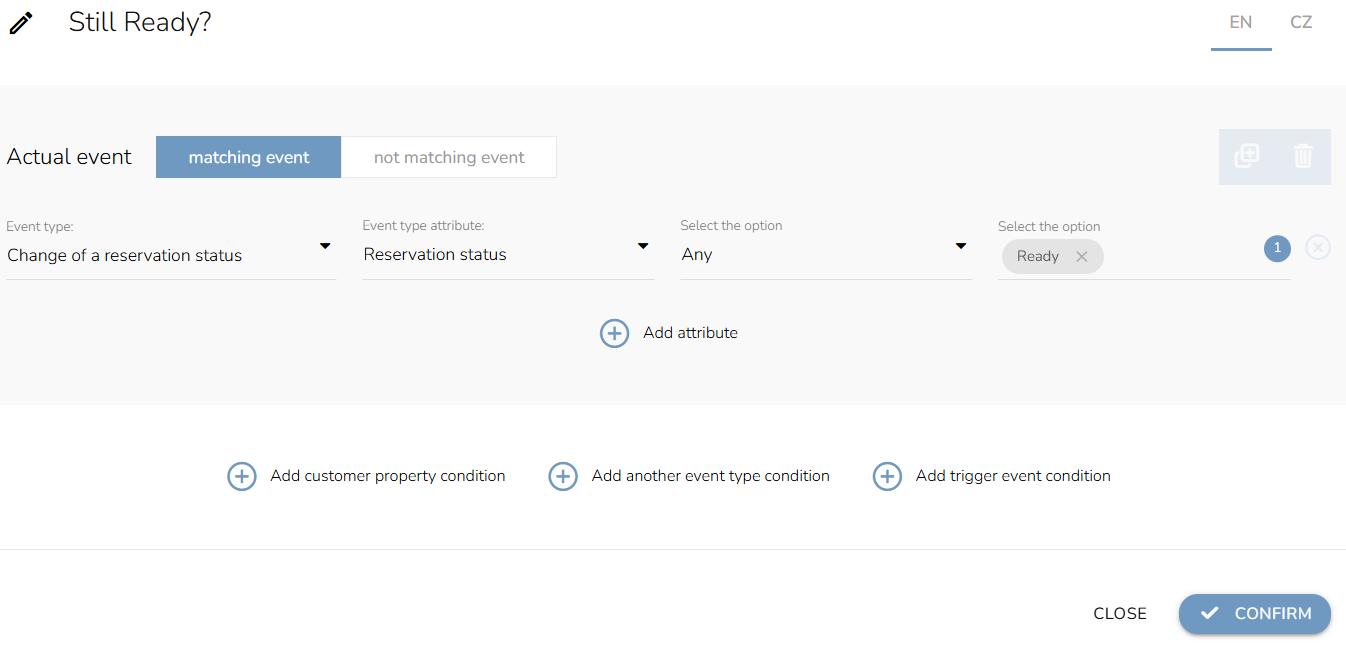
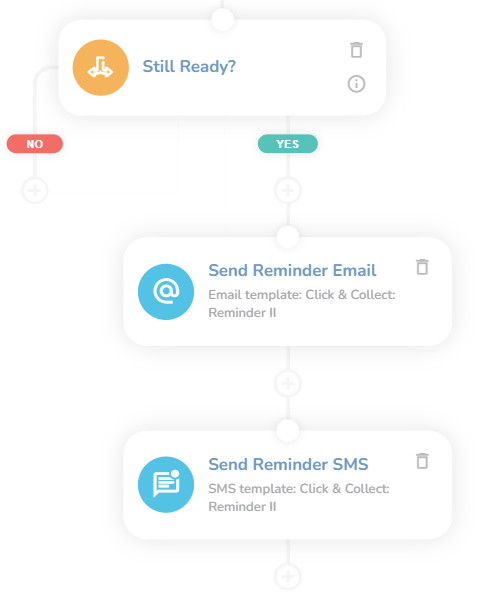
However, if the order wasn´t picked yet, we send an email and SMS reminder. We will wait for another 2 days and set the same condition "Still Ready?". If still not, we will send the two reminders for the last time.
4. Canceled & Abandoned
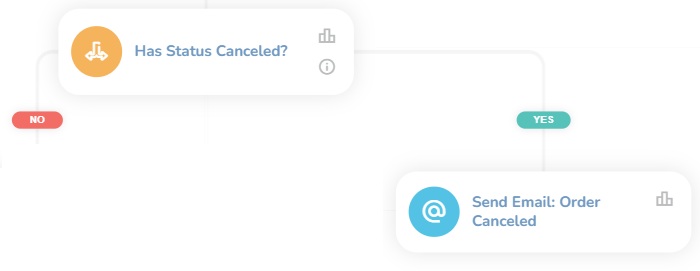
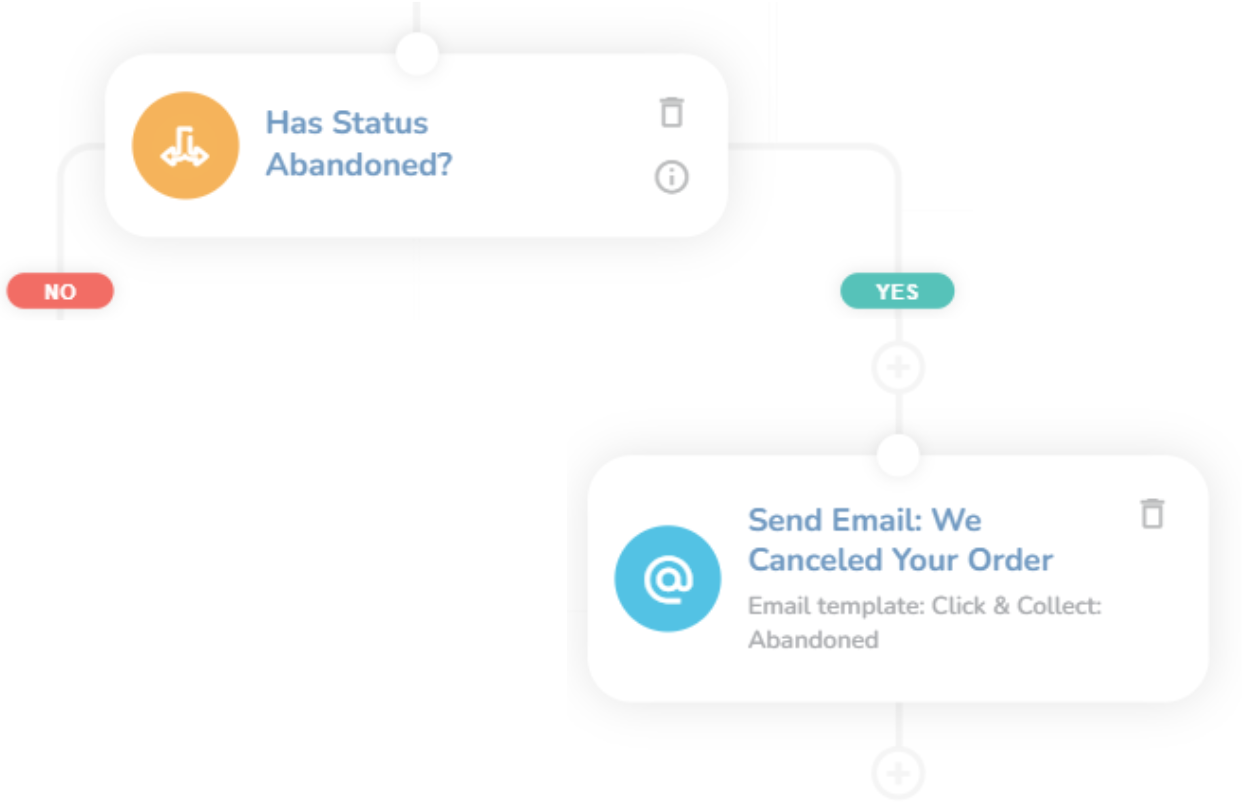
These two branches are the same. Once the order gets canceled or abandoned status, the system will send an info email that the order has been cancelled/abandoned.
5. Delivered
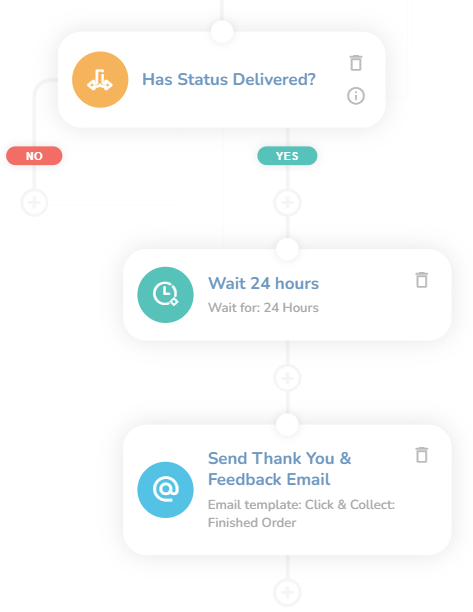
Finally, once the order is marked as delivered, the system waits 24 hours and then sends a “Thank you for your purchase” email.