Create a Customer Property
In the main menu, open the "Loyalty & Administration" app.
In the left menu, click on the "Customer account settings”.

Lastly, click on the "Customer account properties".

In the header of the table, click on the "Create new" icon.

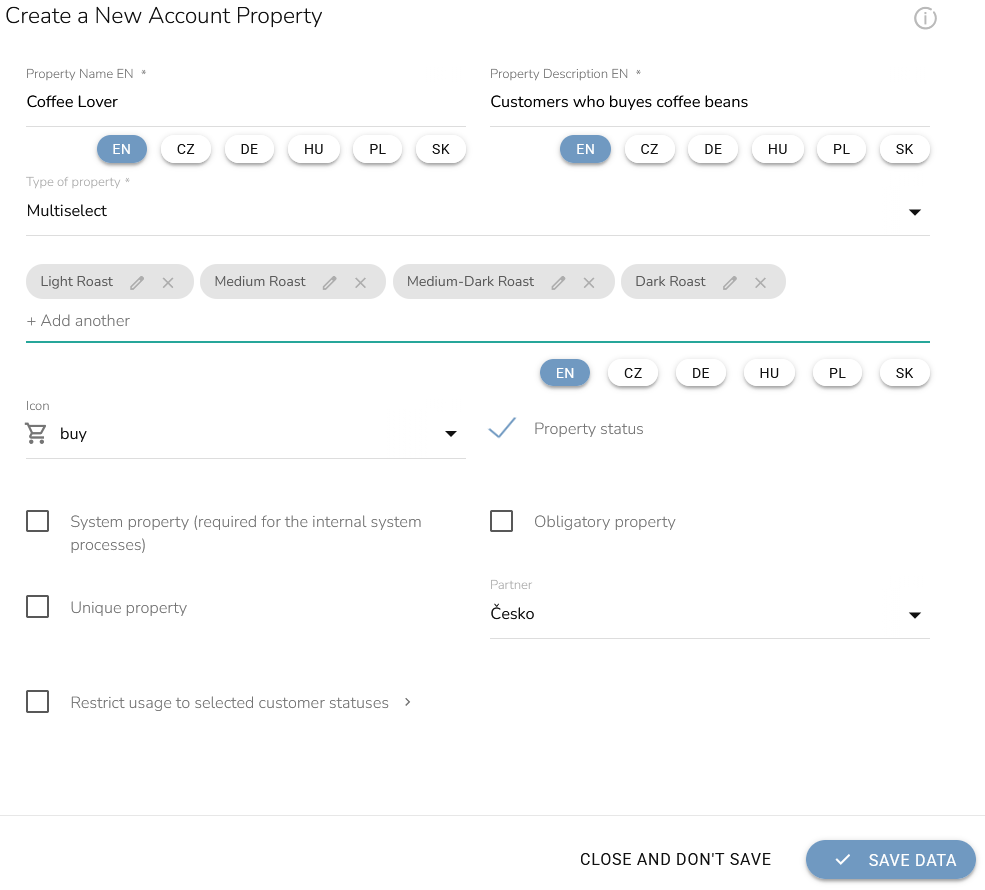
When the pop-up window appears, fill in the property name and an optional description. Then proceed as follows:
- Select Multiselect as the Property Type and choose an icon.
- Check the Property status and assign all relevant partners.
- Leave System, Obligatory, Unique, and Restrict usage inactive.
- List all necessary products or categories as individual options.
- Click Save Data to finish.
Provide your web supplier with the “Property ID” so they can add this property and its values to the field on your website.
Once a customer selects one of these values, the supplier must send us the information through THIS endpoint via our API.
CareCloud saves this information in the customer's account, and you can use it for segmentation.