Set the Membership Level For Company Accounts
Open "Loyalty and Administration" application in the main menu.
In the left menu, click on the "Loyalty settings”.

Then, find "Statuses /Membership levels" and click on it.

To add a new membership level, click on the "Add new" icon. A pop-up window shows up.
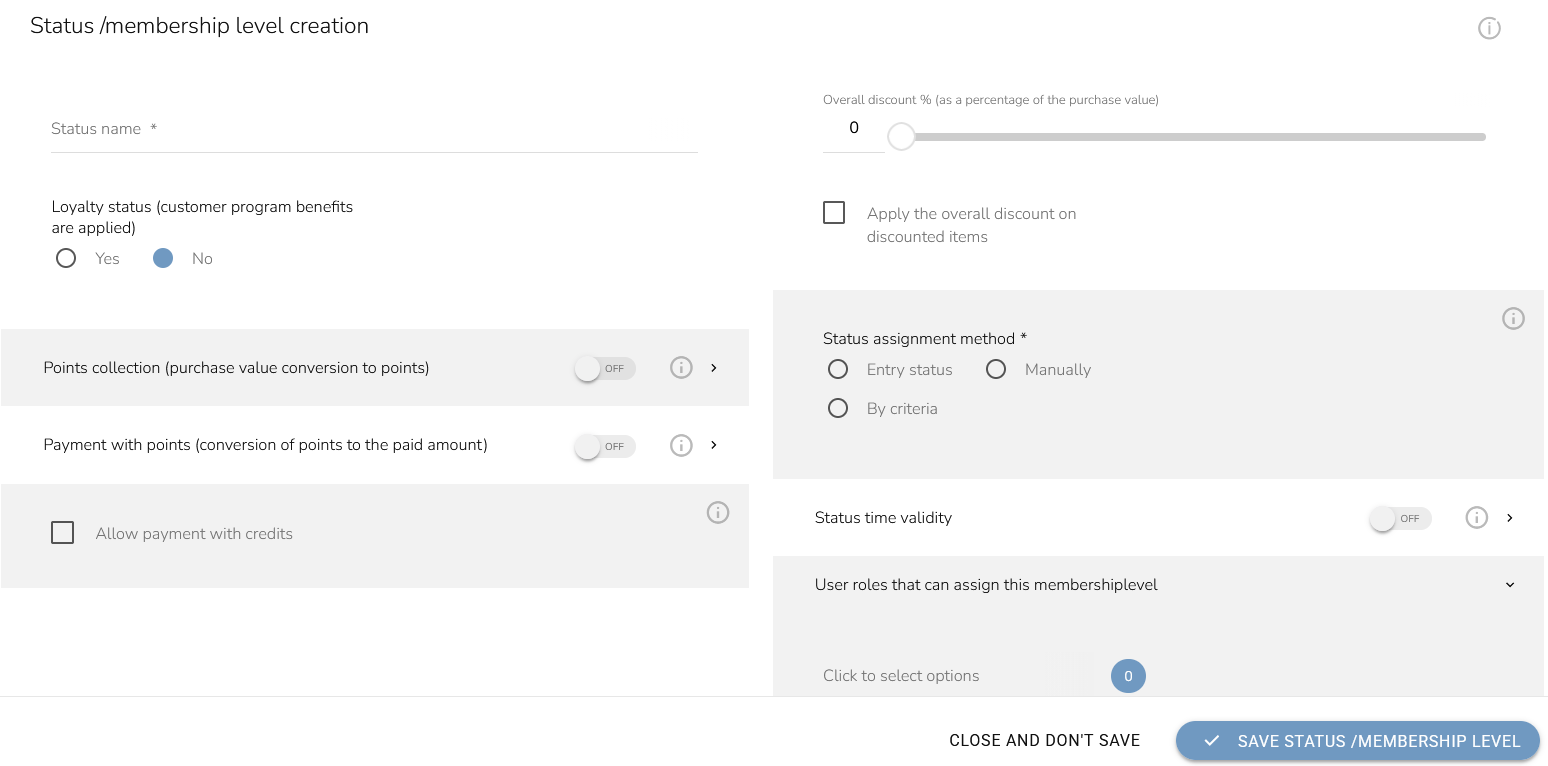
Fill in the status name. Set this status only for registered customers with an email address duplicity check.
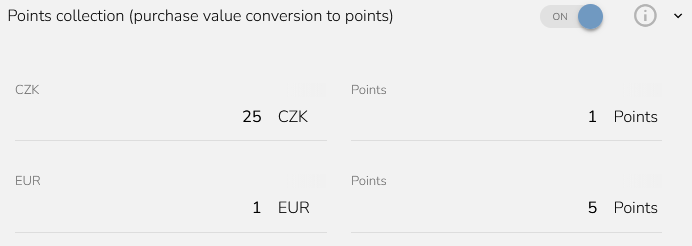
Define the conversion of spent amount to loyalty points. Let´s say, if you set up 1 EUR = 5 points, the company gets 5 points for each Euro spent. In case you to disable points collection, turn this option off.
Check the "Payment with points" option, if you want to turn the loyalty points into discounts. Set up the minimum order value to allow points usage. In case you don't want this option, leave it disabled
Choose, If payment by credit is allowed, full or partial payment can be made using the credits currently allocated to the account at checkout.

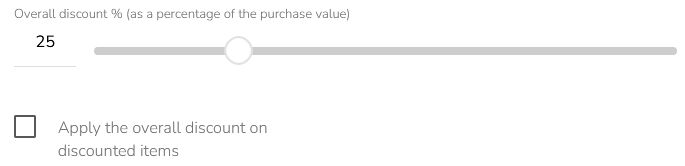
Set the percentage of the overall discount. The percentage counts from the purchase value. Choose whether this discount should apply to discounted items as well.
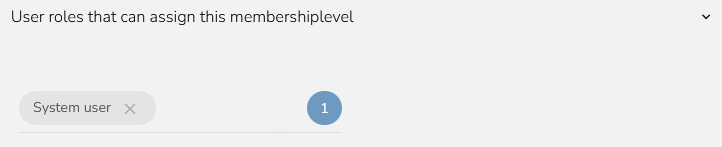
In the status assignment choose "Manually". Turn off status time validity. Lastly, select user roles that can assign this membership level.
When everything is set, click on the "Save Status/Membership level" button.
