Set the Relation Between Existing Customer and Referred Customer
Open the “Loyalty and Administration” app.

In the left menu, click on the "Customer account setting".

Click on the "Customer account relation".

To add a new relation type, click on the "Add new" icon.

A pop-up window shows up. Fill in the relation type name. This type of relation does not need to be set as a system property. You can configure the relation parameters as needed, but none of them are required.
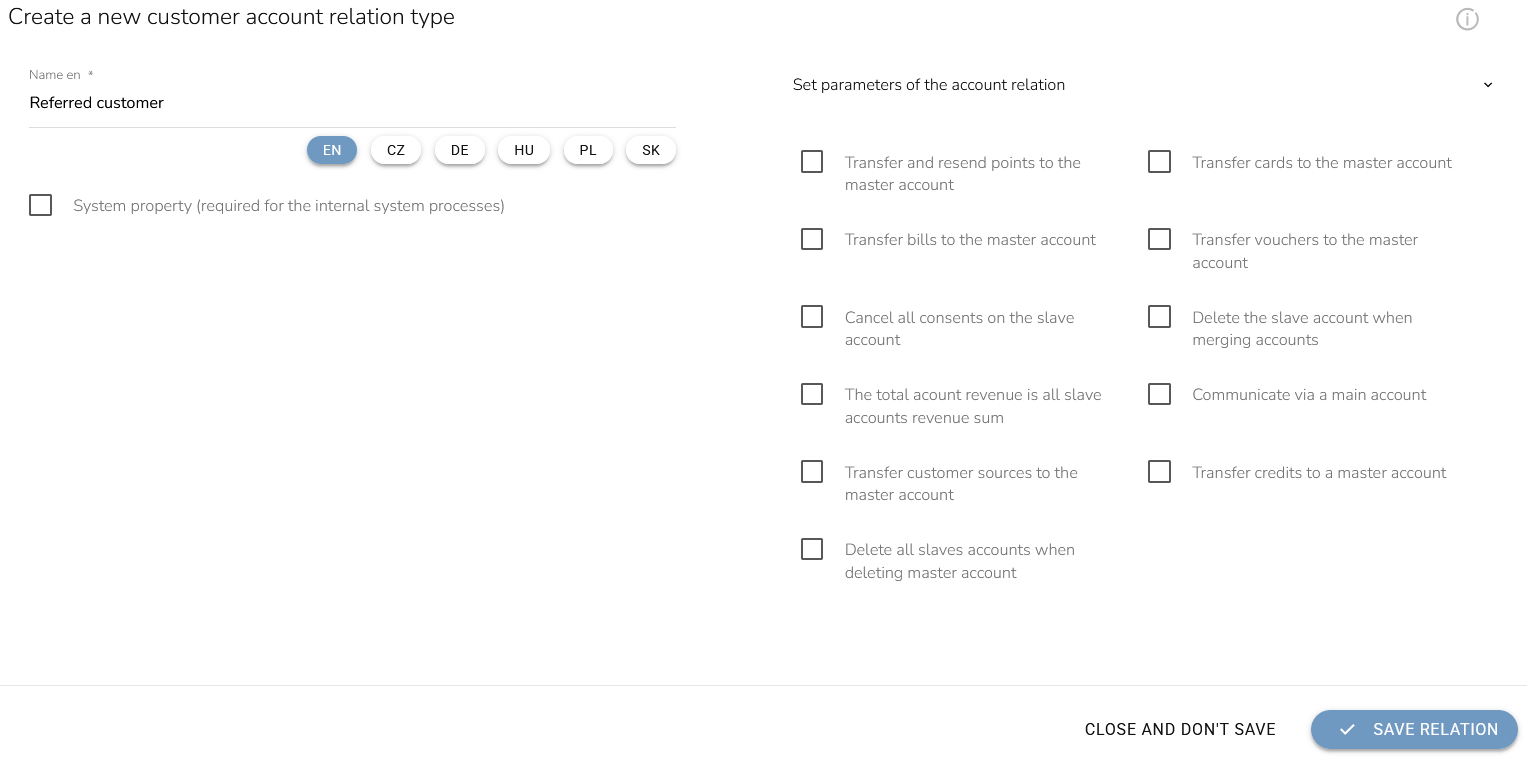
After verifying the settings, click the “Save relation” button.
Linking a referred account to an existing customer creates a relationship where the existing customer’s account always acts as the primary account.