Ongoing campaigns
Open application "Campaigns & Audiences ".
Click on "PassMachine".

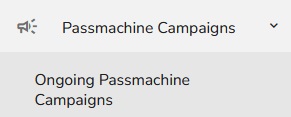
Click on "PassMachine Campaigns" and then "Ongoing PassMachine Campaigns" from the dropdown.
You will see a new page with campaigns that are ready to be sent out.
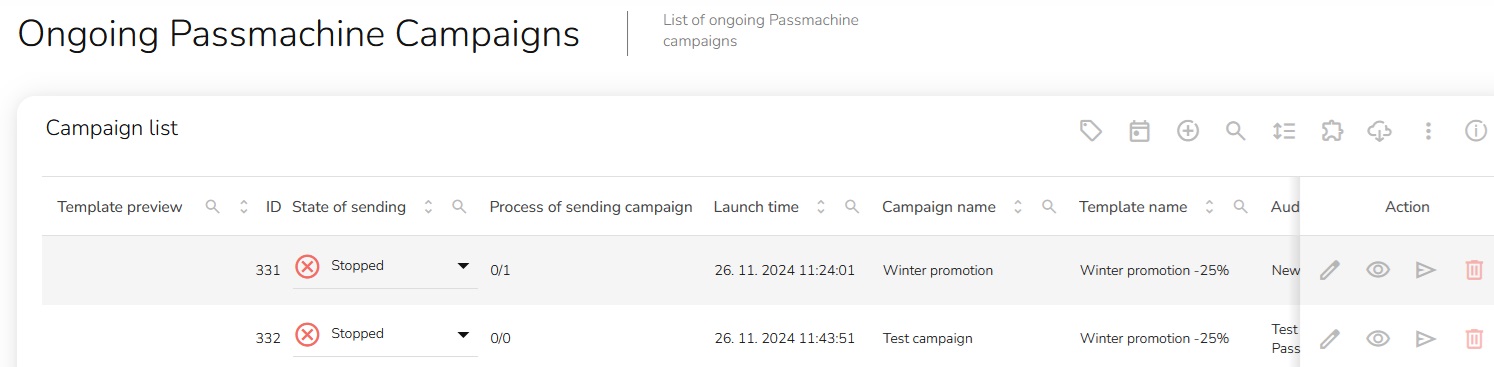
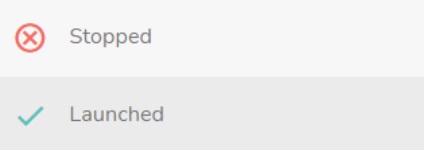
In the State of Sending column, you can set out the State of Sending - Stopped or Launched.
There are four other options that you can do on this page - Edit, Preview, Submit a test message or Delete.

Edit the campaign
The Edit button allows you to change the name, set the priority, launch type, test campaign, choose promoted products, audiences, default template, language versions, AB testing or tag setup.
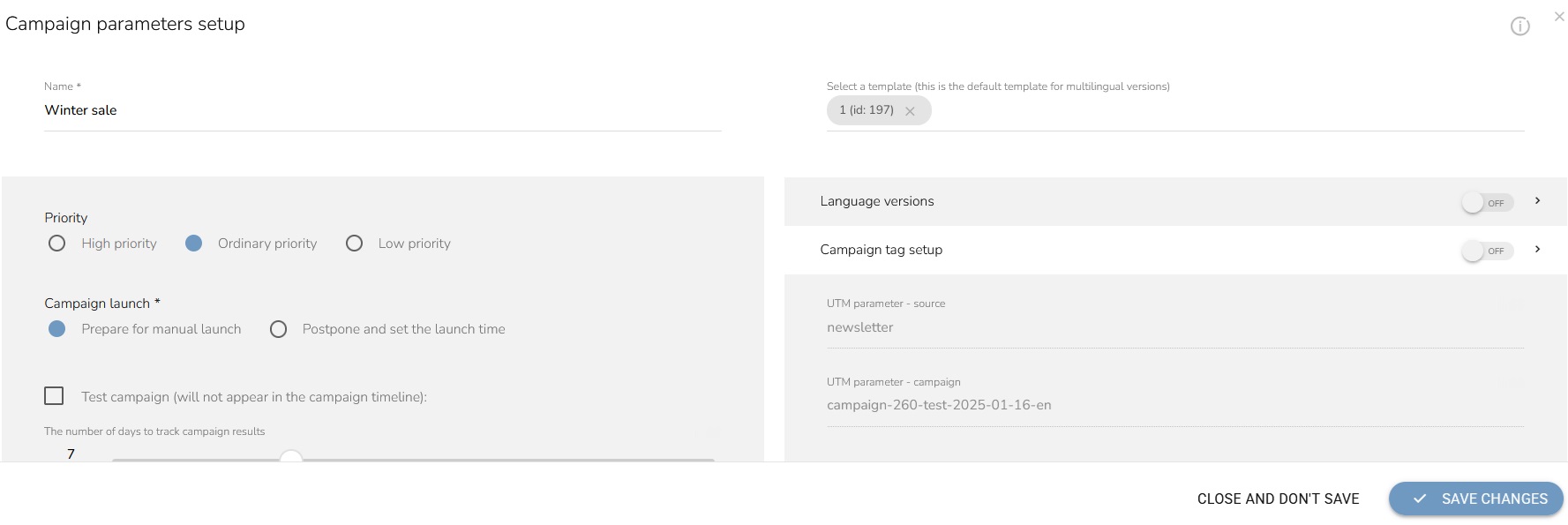
To save your edits, click on "Save Changes".
Preview the template
To preview the template, click on the "Preview template" icon.

The template preview will appear.
Submit a test message
To send a test message, click on the "Submit a test message" icon.

A submitted form will appear. Fill in the recipient of the message, i.e. the recipient to whom the test message will be sent. To send to multiple recipients, separate them with a comma. You can insert the customer account to take data for personalization.
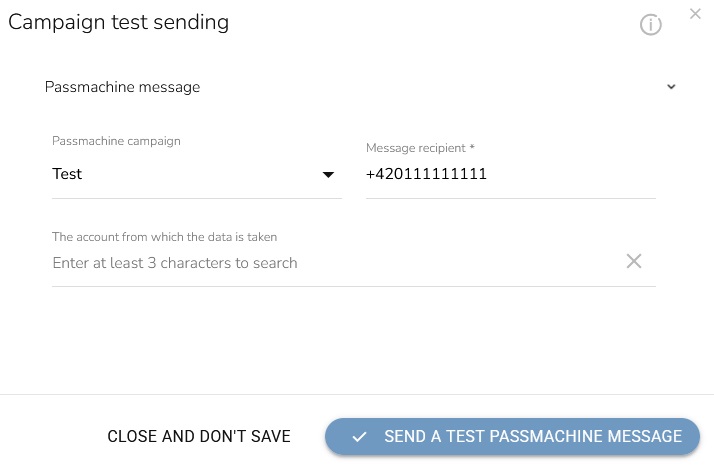
When everything is set, click on the "Send a test passmachine message" button.

Delete the campaign
To delete the campaign, click on the "Delete" icon.

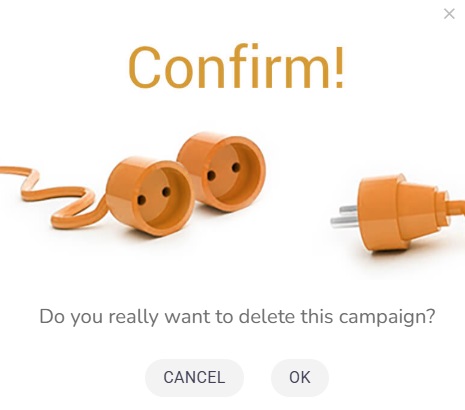
A confirmation window will appear. Click on the "OK" button to confirm the deletion.